After successfully buying domain and hosting for my website, I started using Youtube tutorials by Umar Tazkeer to start learning how to navigate Word press. The following are the steps and syntax i learned along the way that stood out for me as a total beginner.
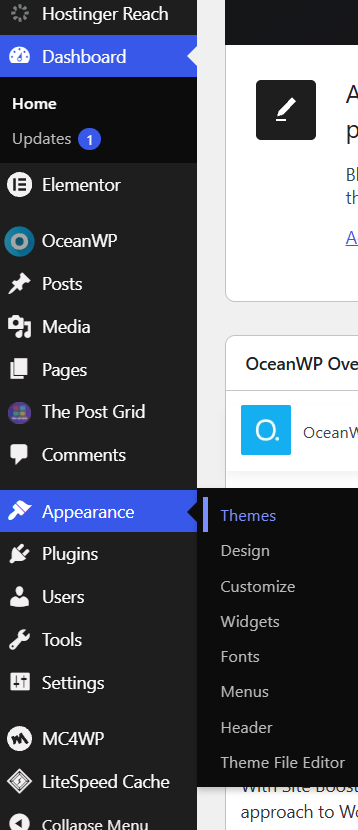
Themes seem to be controlling the overall website layout, structure and appearance using themes like Ocean WP, Astra, Generate Press
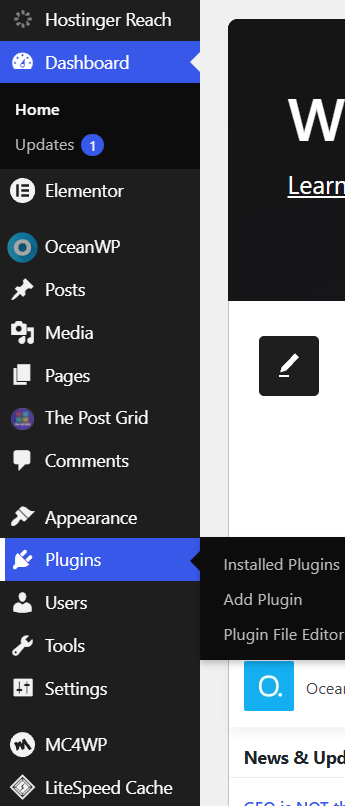
Whereas Plugins add functionality to the website by adding Elements and Widgets. they behave like applications inside wordpress.
After that i created two Pages: Homepage, and Blog Page.
While making pages is WordPress 101 and you can easily learn it on internet one question always remained in my mind: What makes Homepage read as homepage (with all reference links) and Blog posts page as the directory to all posts that i make by adding posts from dashboard?
Answer: It came naturally in the tutorial where the pages were categorized as “static” vs “Dynamic.
The syntax to reach this setting:
Dashboard-Settings-Reading-Your Homepage Displays- A static page- Homepage: “Home”; Posts page-“Blog posts”
The Main Mantra:
In order to understand the building blocks of building a word press website you need to understand these basics:
-
Plugins: Place where you can install various software that work as widgets, elements, functional apps
-
Posts: Places where you add posts which will then be listed in your specified “dynamic” page
-
Pages: To add major pages one can navigate through menu bar
-
Appearance: Major components you navigate in initial stage are: Themes, Widgets
-
Settings: Main sections used in the start is general and reading; once settings are updated you don’t need to use it much.
The Final Website Structure:
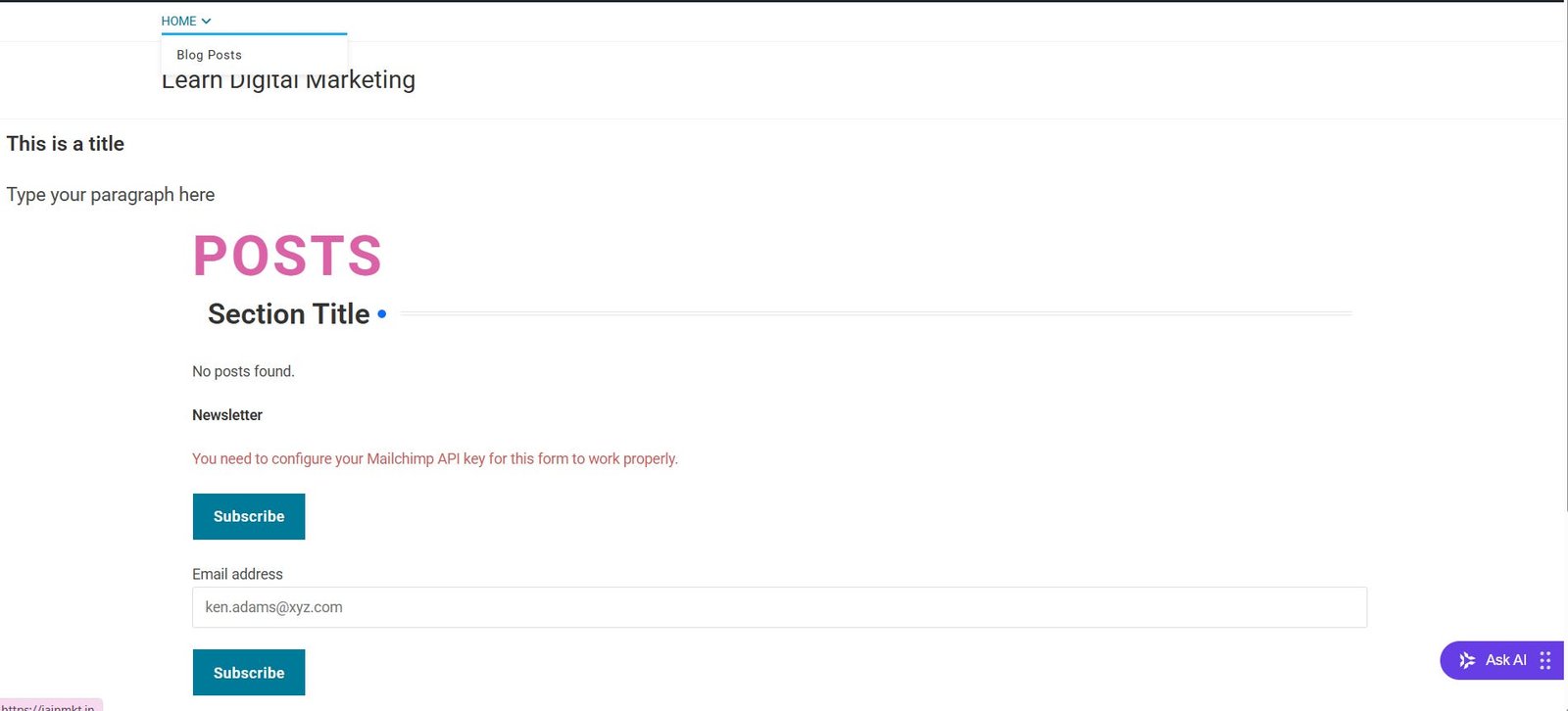
If i could give you a visual website structure it would be something like this:
Header(Edit Page- Drag Header block)
│
Navigation Menu( Appearance- menu-create: Primary menu- Add: Home; Blog- Assign: Primary Navigation)
│
Intro Text( Edit page- Drag text block)
│
Newsletter Signup( Edit Page- Add Mailchimp Widget- Customize fields)
│
Recent Blog Posts( Edit Page- drag TPG grid for blog posts)
│
Footer( Dashboard- Appearance- Widgets- Footer 1,2,3,4 – Add Widgets- Configure- Save)
The above image shows final setup without any data added.